Colour Management
LUT Gallery grades in a scene-linear working space (Linear Rec.2020). What changes around that is how your footage gets in (the input transform, chosen per image in the Inspector) and how the graded result gets out to your display (the output transform, a global setting in Settings → Colour, ⌘, → Colour).
note
ACES pipeline mode and loading a custom OCIO config are Pro features. The per-image input transform (including camera / log spaces) and the display-referred outputs are available in Standard.
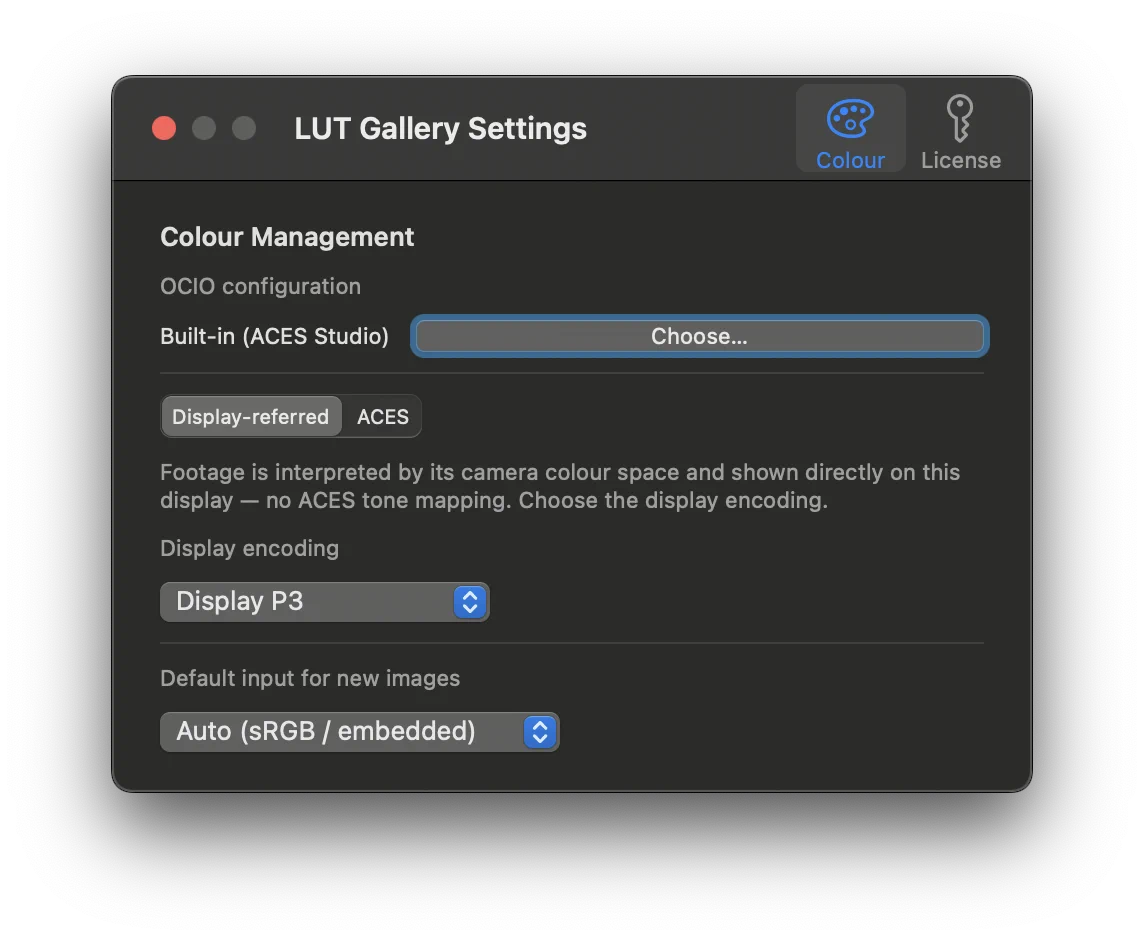
Two pipelines
Pick the pipeline in Settings → Colour:
| Pipeline | What it does |
|---|---|
| Display-referred (default) | Your footage is treated as display-space; the grade is encoded straight to a display output (sRGB / Display P3 / Rec.709). No ACES tone mapping. |
| ACES | Scene-referred: each image’s IDT brings it into ACES, you grade, and an ODT renders it for your display. The full film pipeline. |
The pipeline sets the output behaviour. The input transform is chosen per image in the Inspector and works in either pipeline (see below).
Output / display transform
Because the display transform is a property of your viewing environment, it’s global — one setting, not per image or per LUT.
- Display-referred output is fixed: Display P3, colour-managed to your screen (the toolbar picker shows it greyed out). There is nothing to choose here — on a colour-managed Mac an sRGB or Rec.709 encoding would show the same light, only clipping wide-gamut colours.
- ACES output options: the ODTs from your OCIO config.
Input transform (per image)
Each image declares how it should be decoded into the working space — set in the Inspector’s Input Transform section (Auto, Camera / scene-referred, Display-encoded source, Inverse ODT). New images inherit the default input transform you set in Settings → Colour. Full details in The Inspector.
Cameras without ACES
You do not need ACES to work with log / camera footage. Choose Camera / scene-referred as the input transform (or, on a Canvas card, a Source Colour Space) and the footage is decoded through OCIO into the working space — then shown with a plain Display-referred output. ACES layers the full IDT → ACES → ODT rendering on top when you want it; for many jobs a camera input transform with a normal display output is exactly right.
Using your own OCIO config (Pro)
The camera-space and ODT lists come from the active OCIO config. LUT Gallery
ships with a built-in ACES config; Pro users can load their own studio
.ocio in Settings → Colour (Choose…) and the input/output lists update to
match it. Its camera
colour spaces (or IDTs) then appear wherever you pick an input space — the
Inspector’s Input Transform and each Canvas card’s Source Colour Space.
EXR & scene-linear
Scene-linear .exr files (including DWA-compressed and multipart VFX
renders) are decoded by LUT Gallery’s own OpenEXR reader and default to a
linear scene-referred input, so they grade correctly instead of being read as
sRGB. See Library & Importing.