Licensing & Updates
LUT Gallery is a keyless app — there are no licence keys to type. Your licence is tied to your email and to each Mac you activate it on. Everything is managed in one place: LUT Gallery menu → Settings… (⌘,) → License, or click the gear icon in the toolbar.
At a glance
| You want to… | Do this |
|---|---|
| Try the app | Start Free Trial (enter your email) |
| Buy a licence | Buy… → checkout in your browser |
| Get Pro features | Upgrade to Pro… |
| Keep getting updates after they lapse | Renew Updates… |
| Move your licence to another Mac | Restore Purchase… on the new Mac |
| Free up a machine | Deactivate, or Manage Devices… |
| Install a new version | LUT Gallery menu → Check for Updates… |
Reading your status
The window title always shows where you stand:
- LUT Gallery — Trial (N days left) — full features during the trial.
- LUT Gallery — licensed (Standard).
- LUT Gallery Pro — licensed with Pro features.
- LUT Gallery — Unlicensed — no active trial or licence; the app is locked until you start a trial, buy, or restore.
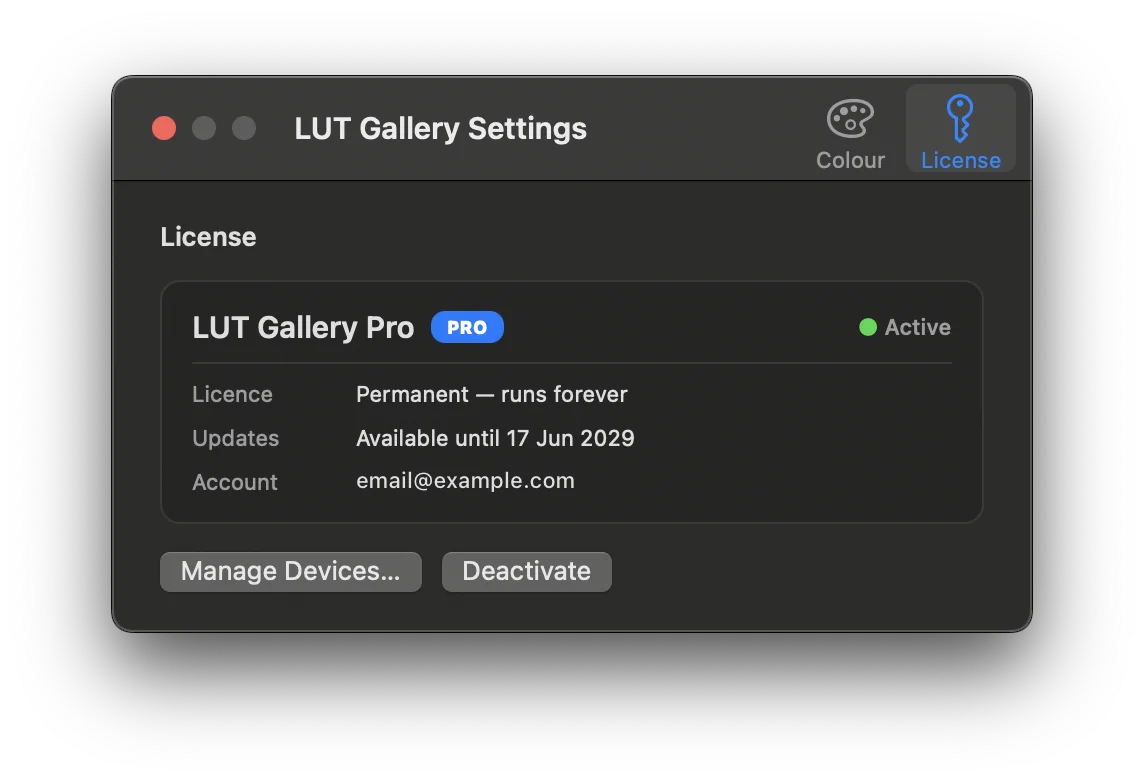
The License pane in Settings shows the same thing in more detail — your tier, whether the licence is permanent, the date your updates run until, and the email the licence is registered to.
A licence is permanent — once you buy, the app runs forever. Only new updates are time-limited (see Updates below). Trials are the one exception: they stop working when the trial period ends.
Trial
On first launch LUT Gallery asks you to start a free trial. Enter your email and click Start Free Trial — that email is how we can reach you and how you restore later, so use a real one.
- One trial per Mac.
- A trial checks in online each time you launch, so keep the Mac connected during the trial. If it can’t verify (offline, or the trial was ended), you’ll see Verify your trial → Try Again.
- Running low on time? Click Request More Time… in the License pane and add a short note. We’re emailed your request; if we grant it, reopen the app and your extra days appear automatically (you’ll also see a one-time note in the app).
When the app can’t verify a still-valid trial (offline, or the trial was ended server-side), it locks to a Verify your trial screen offering Try Again, Buy or Restore… and Quit. Once a trial has genuinely run out its days, the app reads as unlicensed and the normal activation screen (with Start Free Trial, Buy and Restore) returns.
Purchase
Click Buy… in the License pane. LUT Gallery opens checkout in your web browser (not inside the app) — so you get Apple Pay, saved cards and the real, secure payment page. A small “Opening checkout in your browser…” sheet waits in the app while you pay.
There are two tiers:
- Standard — the LUT browser, live preview, the grade engine (white balance, base tone, creative looks), compare tools, collections and sending LUTs to your editor.
- Pro — adds Canvas validation, LUT stacking and Flatten, ACES/OCIO colour management, LUT analysis and camera-native LUT creation.
When you finish paying, the app unlocks itself within a few seconds — no copying anything back. You can close the browser tab once it shows purchase complete. If you change your mind mid-checkout, just close the tab (or click Cancel on the sheet); nothing changes.
Buy on the same Mac you want to use, and the licence activates on it automatically. To use it on a different Mac, see Multiple machines.
Upgrade to Pro
If you own Standard, the License pane shows Upgrade to Pro…. It opens checkout for the discounted upgrade and merges Pro into your existing licence — you don’t get a second licence, and your details carry over.
You may also meet a Pro feature while working; the app offers Upgrade to Pro… right there and takes you to the same checkout.
Updates
LUT Gallery updates itself. Choose LUT Gallery menu → Check for Updates… any time, or let it check automatically. Updates are cryptographically signed, so only genuine LUT Gallery builds will install.
Your purchase includes one year of updates. After that date:
- The app keeps working forever on the version you have.
- New releases still appear in the updater as a heads-up, but show a Learn More link instead of installing — that’s the nudge to renew.
- To resume installing the latest builds, click Renew Updates… (shown only once your updates have lapsed). Renewing adds another year; it does not change the fact that you own the app permanently.
The License pane shows your update window — Available until
Deactivation
Each licence activates a limited number of Macs (one, unless your licence says otherwise). Deactivate (in the License pane) releases this Mac — its seat is freed on the server and the local licence is cleared, so the app returns to the activation screen. Do this before wiping or selling a machine, or to move your single seat elsewhere.
Multiple machines & restoring
To use your licence on another Mac, install LUT Gallery there and click Restore Purchase…:
- Enter the email you bought with. We email you a link — there’s no code to copy. (Check your spam folder.)
- Open that link on the new Mac. LUT Gallery catches it and activates automatically. The link is valid for a short time, so open it promptly.
A few things you might see:
- All your activations are in use — every seat is taken. LUT Gallery shows your machines so you can Deactivate & Restore — free one and bind this Mac in a single step. (Or open the old Mac and click Deactivate there.)
- Multiple licences — if your email owns more than one licence, you pick which to use from a list (each shows its edition, purchase date and free seats).
Licences are matched per email. If you bought different products or licences under different addresses, restore each with the address it was bought under.
Manage Devices
Manage Devices… (License pane, when activated) lists every Mac on your licence — this Mac is marked. Select any one and Deactivate it to free a seat at any time, without waiting to hit the seat limit. You can also deactivate the current Mac here (same as the Deactivate button).
Troubleshooting
| Message | What it means |
|---|---|
| Activate LUT Gallery (on launch) | No active trial or licence. Start a trial, buy, or restore. |
| Verify your trial → Try Again | A trial couldn’t check in online. Get connected and retry — trials aren’t honoured offline. |
| All your activations are in use | Every seat is taken. Deactivate a Mac (here or on the other machine), then restore. |
| Check your email after restore | The restore link is on its way — open it on the Mac you want to activate. No code to paste. |
| Your Mac’s date looks wrong | The system clock is off, which blocks verification. Turn on Set date & time automatically, get online, and reopen. |
Owned licences keep working offline for a long grace period, so a temporary loss of internet won’t lock you out once you’re activated. Trials always need to check in online.