Preview Mode
Preview is for auditioning LUTs on a single image, fast. The big centre (“hero”) shows your current image with the selected LUT applied; the film strip shows it through every other LUT.
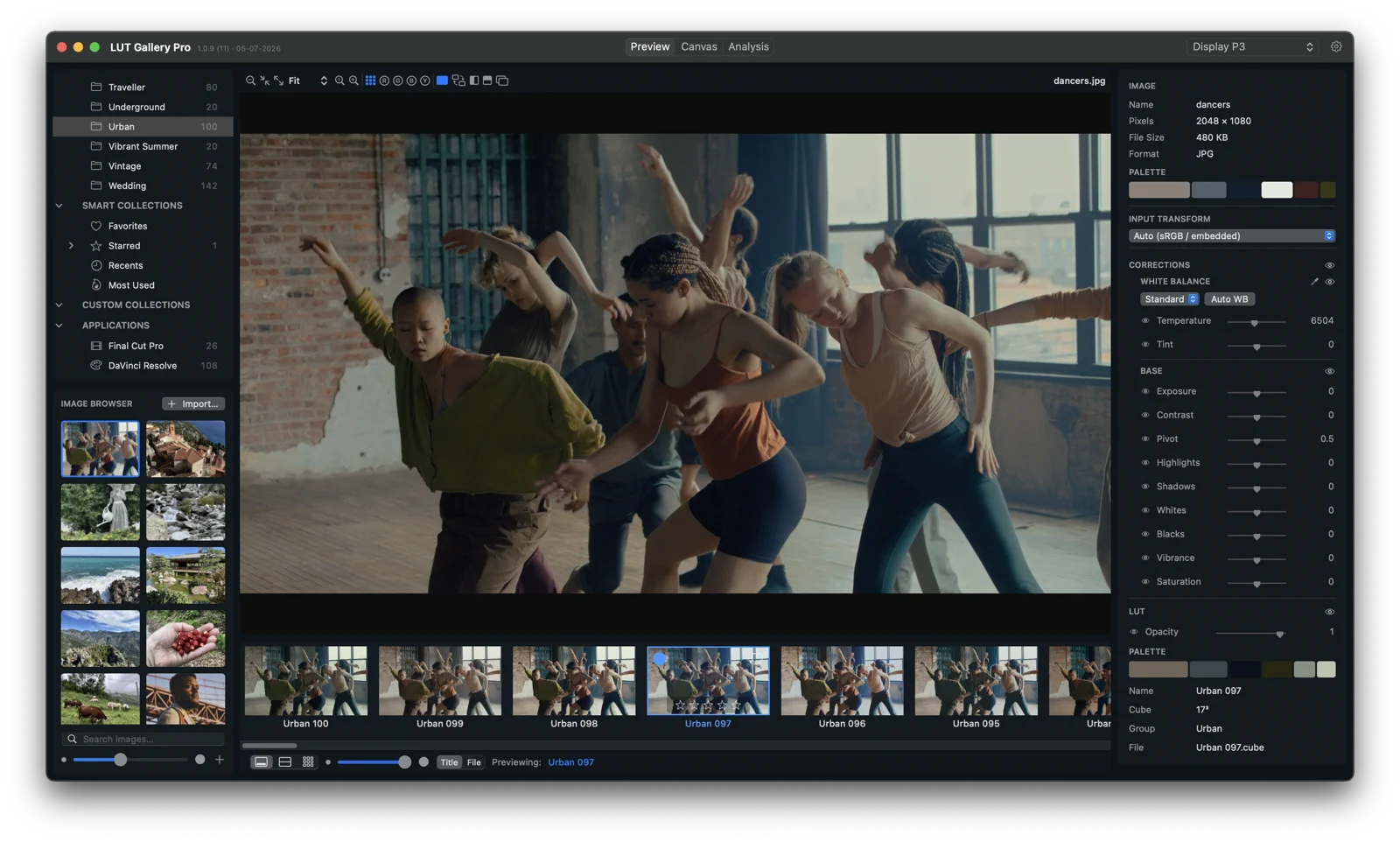
Applying a LUT
- Click a LUT in the film strip or the library → it’s applied to the hero image immediately.
- The applied LUT appears as the Creative Look / LUT section in the Inspector, with an Opacity slider to dial the look in.
Viewer header controls
The bar above the hero image controls how the image is displayed — it never changes the pixels you’d export.

Zoom
| Control | Meaning |
|---|---|
| Zoom out / Zoom in | Step the magnification down/up. |
| Zoom preset (popup) | Jump to Fit, Fill, or a fixed 25 / 50 / 100 / 200 / 400 / 800 %. |
| Fit / Fill buttons | Quick buttons in the header — Fit frames the whole image, Fill covers the viewer (crops the overflow). |
| Actual size 100 % (press 1) | Show the image at one screen pixel per image pixel. Press f for Fit. |
Fit = whole image visible. Fill = no empty space, edges may be cropped.
Channel display
Isolates one channel so you can judge contrast and colour separately. This is a view only — it doesn’t alter the image.
| Button | Shows |
|---|---|
| RGB | The full-colour image (default). |
| Red / Green / Blue | That single channel, as greyscale. |
| Luma | Perceived brightness only — great for checking contrast and a LUT’s tonal response. |
Compare
Shows the graded image (B) against the original (A) so you can see exactly what the LUT did. See Comparing for the full breakdown. In short:
- Compare off — just the graded image.
- Toggle A/B — flip the whole frame between the graded look and the original.
- Curtain wipe (vertical / horizontal) — split the frame with a draggable divider; the graded look on one side, the original on the other.
- Butterfly (mirrored) — the graded look on the left, a mirror of the original on the right, so matching features meet in the middle.
The overlay labels the graded side with the look’s name and the other side Original.
Grading the image
Select the image (not a LUT) and the Inspector shows the grade controls — RAW decode, white balance and base tone (no tabs; they’re always visible under the image info). Those controls are documented in The Inspector.
Left sidebar in Preview
- LUT Library card — browse/filter your LUTs (All LUTs, Favorites, smart and custom collections).
- Image Browser card — your pool of source images; click one to make it the hero. A draggable separator sets how the two cards share the height.
See Library & Importing.